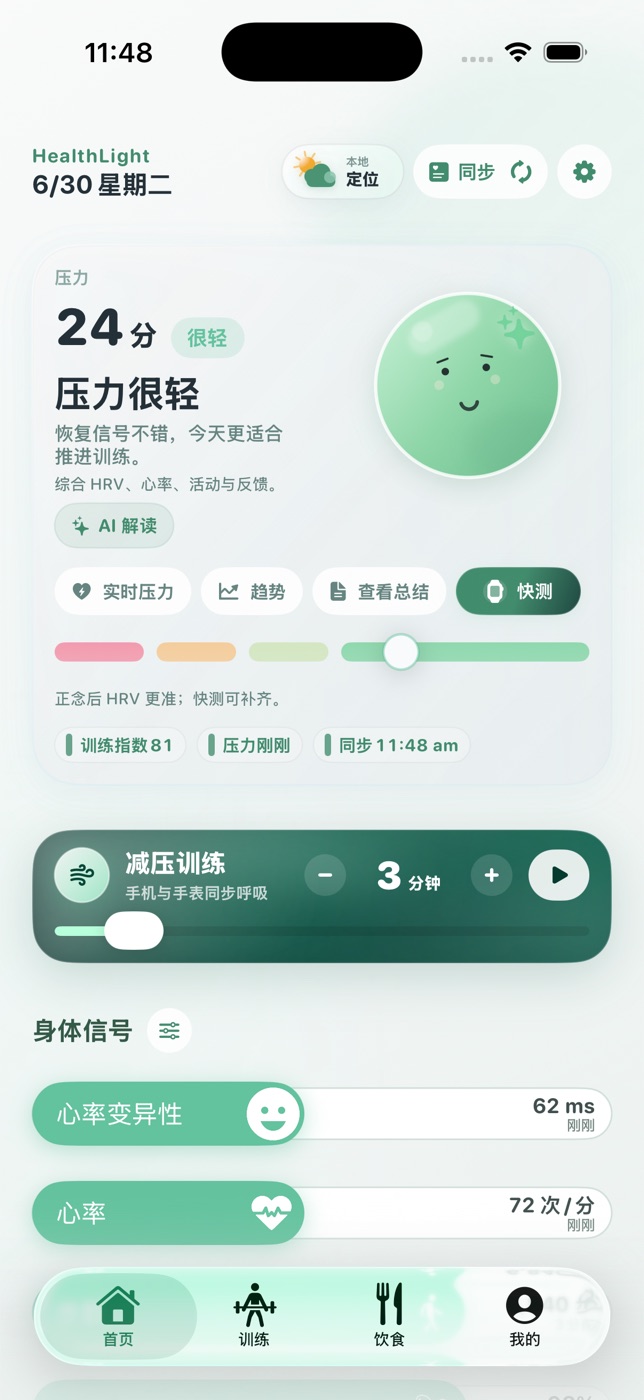
Getting Started With HealthLight
On first use, complete basic setup before checking today's state. The product turns available signals into daily references instead of asking users to understand raw data.
- 1Open the app and confirm language, region, and basic preferences.
- 2Connect Apple Health or start the manual record flow.
- 3Check today's state card and use it alongside the day's plan.
Data Permissions
HealthLight follows permission-first and minimum-necessary principles. Users choose the permission scope, and unauthorized data is not used for state references.
- 1Review the purpose of each health data type on the system permission page.
- 2Enable only the data types you are willing to use for state references.
- 3You can adjust permissions later in system settings.
Reading State Cards
State cards are for observing trends, not medical diagnosis. They help users understand whether today is better for pushing, recovering, training, or keeping reserve.
- 1Read the overall state first, then individual indicators.
- 2Understand fluctuations alongside recent sleep, training, work stress, and subjective feeling.
- 3Use AI text as a reference, not a final conclusion.
Privacy and Medical Boundaries
HealthLight does not provide diagnosis, treatment, emergency care, or guaranteed improvement. For persistent discomfort, abnormal indicators, or acute symptoms, contact a medical professional.
Feedback and Partnerships
If you want to submit product suggestions, join a beta, collaborate, or request media materials, choose the matching topic on the contact page.